
EntraID (aka Azure Active Directory) Audit/Sign In
MS Entra (aka Azure Active Directory) Audit/Sign In#
You must have an MS Entra ID P1 or P2 license in order to export Entra/Azure Active Directory Sign In logs. These logs provide us visibility into all authentication attempts to Azure AD accounts and are an important source of intel in the case of compromised accounts. We recommend that customers either move to a different M365 license or, at a minimum, purchase an Azure P1 license as an add on, especially if the company uses AzureAD as an IDP for Single Sign On.
To configure Microsoft Entra - Audit/Sign In, complete the following steps:
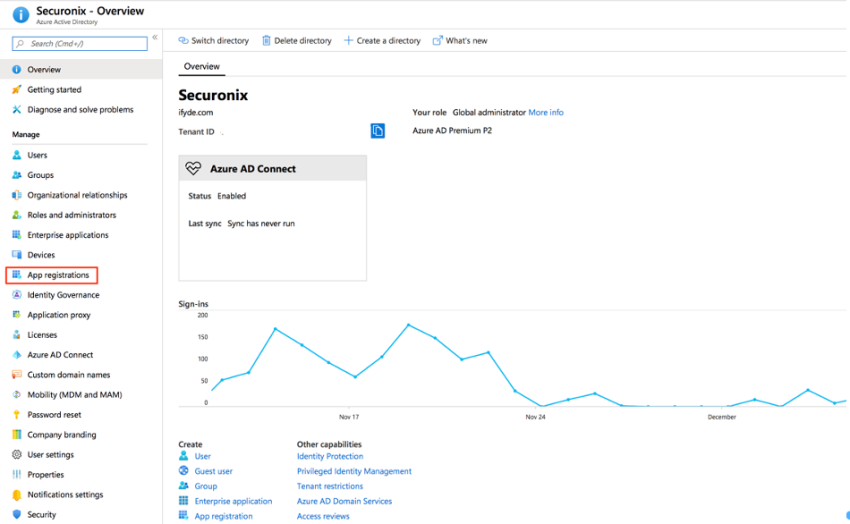
- Open the Microsoft Entra ID resource in the Azure Portal.
- Click App registrations.
- Click New Registration.
- Provide a name: Securonix Azure AD Logs
- Set account scope to Single tenant.
- Click Register.
- Click the new application created on the App registration Page.
- Copy Client ID and Tenant ID - you will need to provide these to SolCyber.
- Click View API permissions.
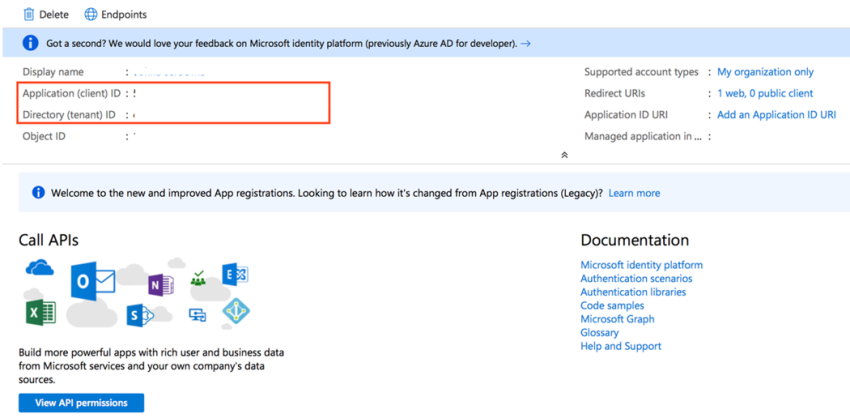
Once you have created the API key, add permissions to the API key:
- Click the API Permissions section -> Add a Permission.
- Click the Microsoft API tab to select the type of resources you need and select Microsoft Graph.
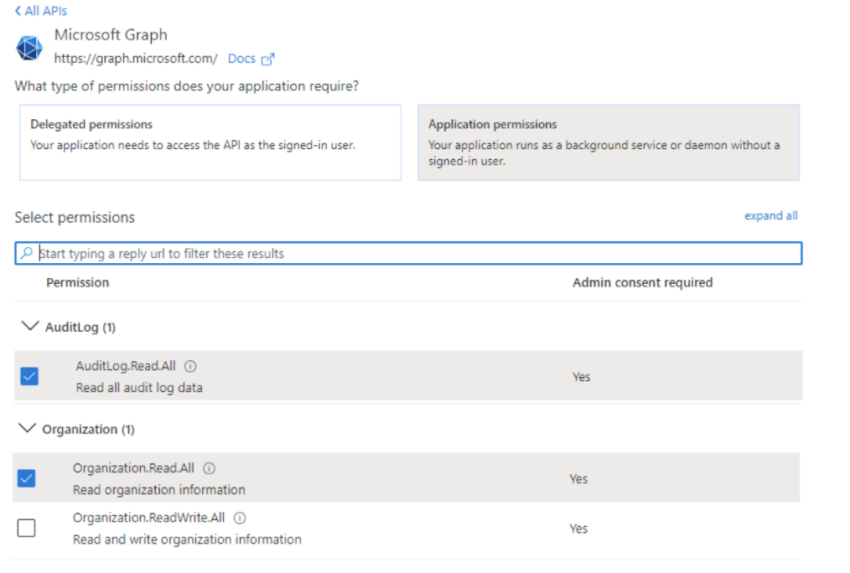
- Add the following APPLICATION permissions for Microsoft Graph:
- SecurityEvents.Read.All
- Reports.Read.All
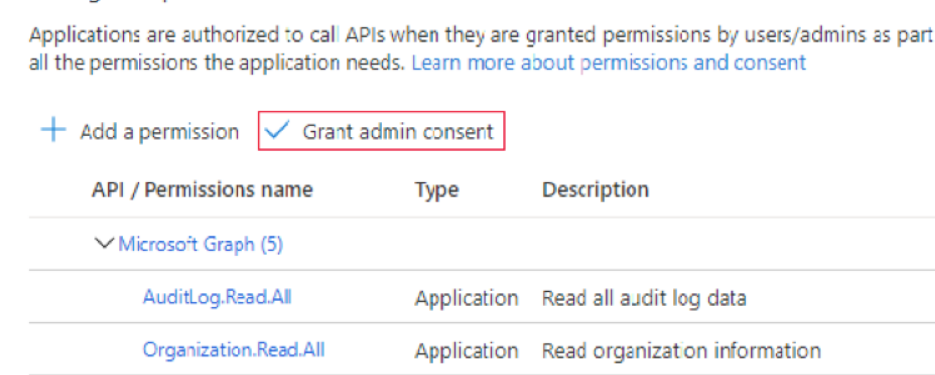
- AuditLog.Read.All
- Directory.Read.All
- Organization.Read.All
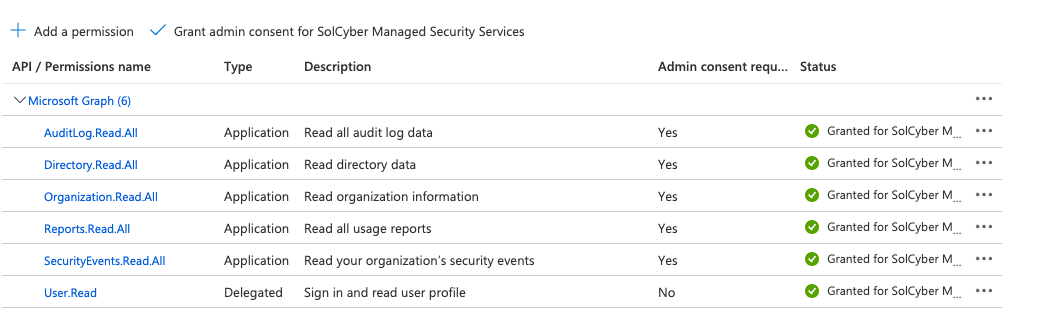
- Click Grant admin consent after selecting permission. For granting permissions, the user(s) with Global Administrator privileges are required.
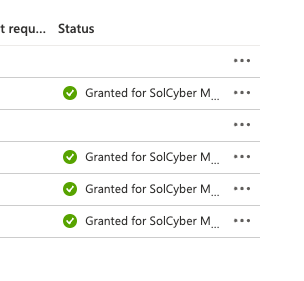
- You will see in the Status column that consent is successfully granted for your tenant.
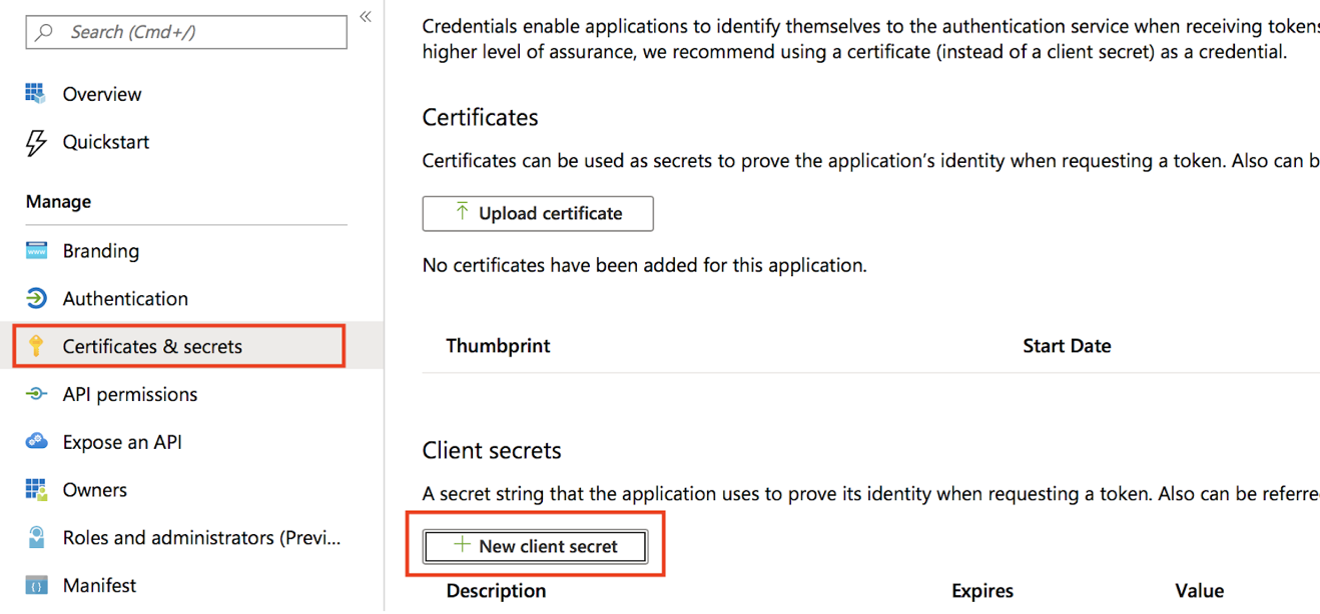
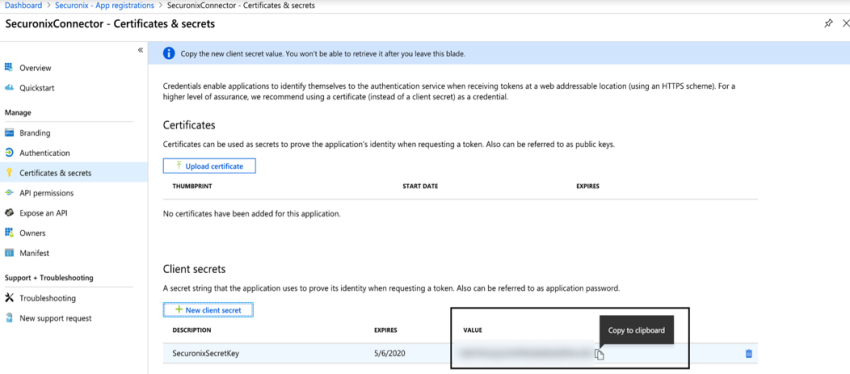
- Select Certificates & secrets and generate a new certificate
- Provide the following details when the window appears:
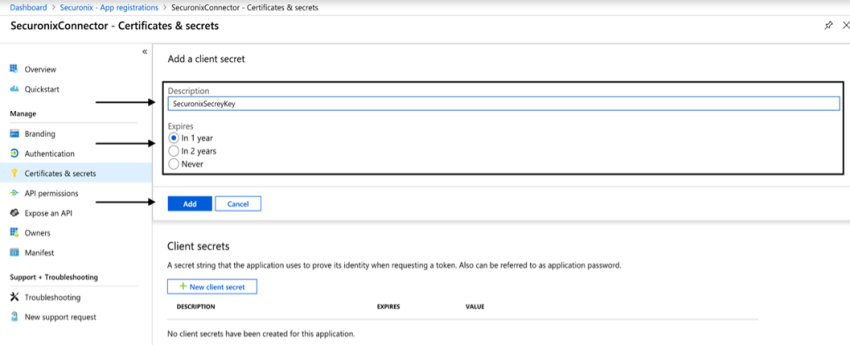
- Description: SecuronixKey
- Expires: 2 Years
- Click the copy icon beside the Value of client secret to copy to clipboard. This value will not be retrievable once you leave this page.
You will need to provide SolCyber with the secret value, along with the App and Tenant ID from above.