
Phishing Simulation Whitelisting - Google Workspace
To ensure phishing simulation emails are delivered to your users’ inboxes, please follow the following whitelisting steps.
Content Compliance Filter#
Navigate to Google Workspace Admin Console and, from the left menu navigate to Apps → Google Workspace → Gmail.
Click on Compliance Tab and then click on Configure for Content compliance.
A new tab will open and add the following values.
Set
Right Hand Spam Filter Bypassas the name for the rule or name it based on your choice or convention.Select `Inbound` inside Email messages to affect.
Click on Add to create a new rule, and a new window will open.
Select
Advanced content match.Select
Full Headersinside the Location drop-down menu.Select Match type
Contains textand add52.74.95.172inside the content field.
Inside the If the above expressions match, do the following section, select
Bypass the spam filter for this message.
The rule will be added

- Make sure that rule applies to all the organization units.
Create Spam Filter to Remove Warning Banners#
Gmail may displaying warning banners for Phishing Simulation emails:
.png)


In order to prevent this, we will add a spam filter that will disable these banners for emails from our phishing campaign domain.
- Navigate to Google Workspace Admin Console and, from the left menu navigate to Apps → Google Workspace → Gmail.
- Click on Spam, phishing, malware
- In the Spam section, click Configure (or Add a New Rule)
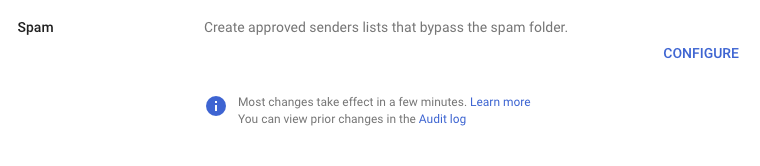
- A few things will be checked by default:
- Uncheck Bypass spam filters for messages from senders or domains in selected lists.
- Bypass spam filters for internal senders. will also be checked.
- Check Bypass spam filters and hide warnings for messages from senders or domains in selected lists. and select Create or Edit list.
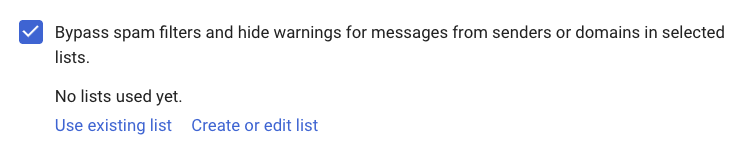
- A new page will open in a new tab - Manage address list
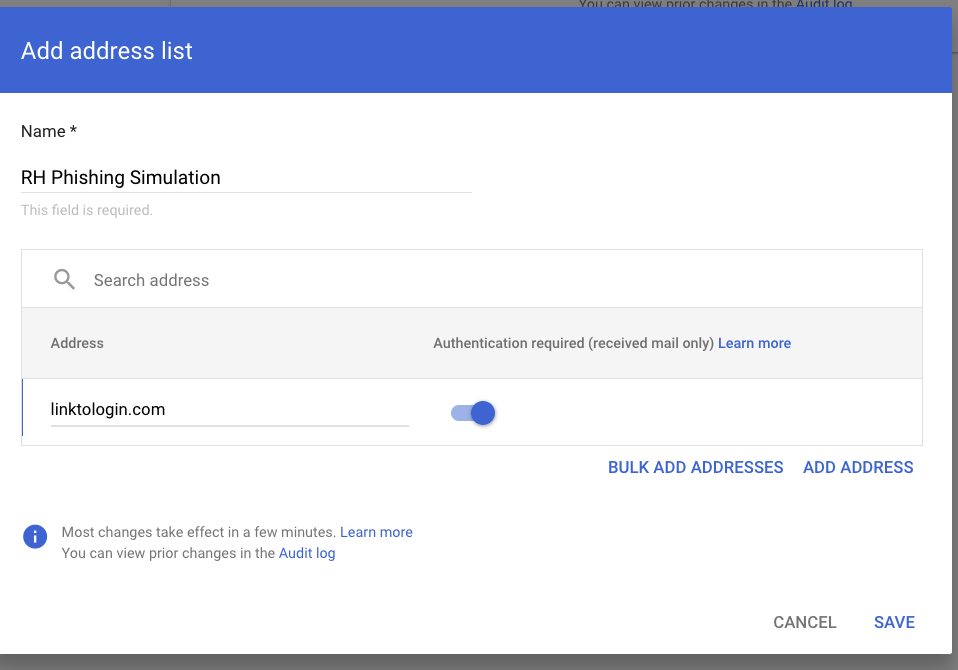
- Click Add Address List
- Name it RH Phishing Simulation. Click Add Address and add the following domains:
- right-hand.ai
- bankng-login.com
- linktologin.com
- inbox-login.com
- linktosso.com
- ssotowebsite.com
- login-sso.com
- verified-login.com
- authupdate.com
- resetlogin.com
- account-protect.me
- discountOffer.com
- grnaill.com
- mailboxaccess.com
- rnicrosoftlogin.com
- linkdinapp.com
- micosot.com
- doqusign.com
- Click SAVE.
- Go back the original tab with the Spam Filter settings. Click “Use Existing List” and select the list you just created. Click the X to be taken back to the Spam Filter Settings. You will now see the list added.
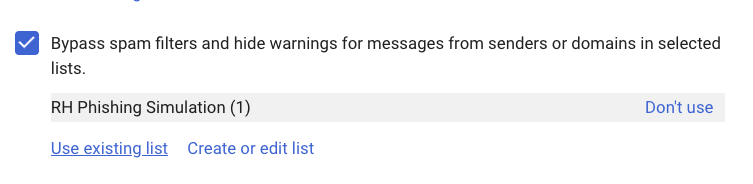
- Click SAVE