
Windows Agent Installation
Installation of Windows agent version 23.4 and above DOES NOT require a system reboot.
If you are installing any agent version before 23.4, a system reboot is required to complete installation.
Install with interactive GUI wizard#
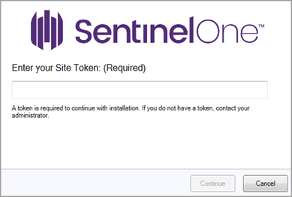
Run the installation package and enter the Site Token when prompted in the installation wizard.
Install via CLI#
Install silently without user interaction#
Using the elevated command prompt, run the installer in CLI with switches for the token and silent installation.
Example for EXE packages:
C:\Users\S1\Desktop\Sentinel\SentinelOneInstaller.exe -q -t<string>``/quietExample for MSI packages:
C:\Users\S1\Desktop\Sentinel\SentinelOneInstaller.msi -q -t<string>See Windows Agent Installer Command Line Options for more advanced options for CLI installation.
Sample batch script for use with GPO deployment:
@ECHO OFF
REM --- Check for an existing installation of Sentinelone (the 'Sentinelone Service' process)
IF EXIST "C:\ProgramData\Sentinel\assets\" goto _End
REM --- Copy to Device
copy \\PATH\TO\SentinelInstaller_windows_64bit_v22_2_4_558.msi c:\windows\temp\ /Z /Y
REM --- Install
C:\Windows\temp\SentinelInstaller_windows_64bit_v22_2_4_558.msi -q -t "site_token_here"
GOTO _End
REM --- End of the script
:_End
The SentinelOne agent install will also enable Microsoft Volume Shadow Copy Service, which takes a system snapshot every 4 hours. These snapshots can be used to roll back to a previous state, prior to a SentinelOne detection. SentinelOne’s VSS copies are set by default to take up no more than 10% disk space. These settings can be modified during or after installation.
A Note On the Use of Volume Shadow Copy Service (VSS)#
The SentinelOne Rollback mitigation feature uses the Microsoft Windows Volume Shadow Copy Service (VSS). This service saves a copy-on-write snapshot of the endpoint drives (physical and logical). The service saves changes of the drive to a new snapshot on an interval.
If there is an attack that changes the files on an endpoint, such as ransomware, Rollback restores the shadow copies of the files impacted by the threat. The Agent identifies the files to roll back and automatically restores only those files, to make sure you lose the minimum data and work (usually none).
SentinelOne Rollback adds shadow copies to those that the Windows creates, as configured on the endpoint. The Agent does not change the OS configuration.
There are some known interoperability issues when SentinelOne is installed alongside another application that creates or accesses shadow copies (for example, Veeam or other backup software). Please work with the SolCyber SOC to address issues with VSS if necessary.
Uninstall Agent#
Because most agents have Tamper Protection enabled, the easiest method to remove the SentinelOne agent from a device is to have SolCyber send an uninstall command from the SentinelOne console. Please open a ticket (soc@SolCyber.com) to request this.
If the device is offline or you prefer to uninstall the agent yourself, you will need to request the unique passphrase for the device from the SOC, which will enable you to remove the agent locally using the built-in Add/Remove Programs function, or to use the command-line to uninstall.
Windows Agent Installation Logs#
Windows Agents generate installation logs in clear text on the endpoints.
We show paths with Windows notation (begin and end with %), which will work on all endpoints. To use a full path, you must make sure of customizations to drive letters and of user names.
| Activity Type | Initiated By | Log Location |
|---|---|---|
| Clean Install | Management or GPO |
(%windir% is C:\Windows) |
| Clean Install | End user |
(%temp% is C:\Users<em>username\AppData\Local\Temp) If the clean install is from MSI, and the MSI fails before handing off to the SentinelInstaller, the log filename is Otherwise, the log filename is |
| Clean Install | Logs are copied automatically after successful installation | C:\ProgramData\Sentinel\UserCrashDumps\*.* |
| Customize Installation Folder Name | End user |
|
| Upgrade | Management or GPO |
|
| Upgrade | End user |
|
| Uninstall | Management or GPO | %windir%\temp\ |
| Uninstall | End user | %temp% |
Tip: To troubleshoot installation issues, search the logs for “ERROR” or “FATAL”.
SentinelOne and Windows Defender#
After you install a Windows Agent, rules are added to your Windows Defender Firewall to make sure both the Agent and the OS work as expected. These rules often have ‘Sentinel Agent’ in their names. If you have SentinelOne Firewall, built-in rules will be added automatically by the Agent, for the same reason. These rules often have ‘SentinelOne’ in their names.