
Zscaler ZPA
- Go to Configuration & Control > Private Infrastructure > Log Streaming Service > Log Receivers.
- Click Add Log Receiver. The Add Log Receiver window appears.
- In the Add Log Receiver window, configure the following tabs:
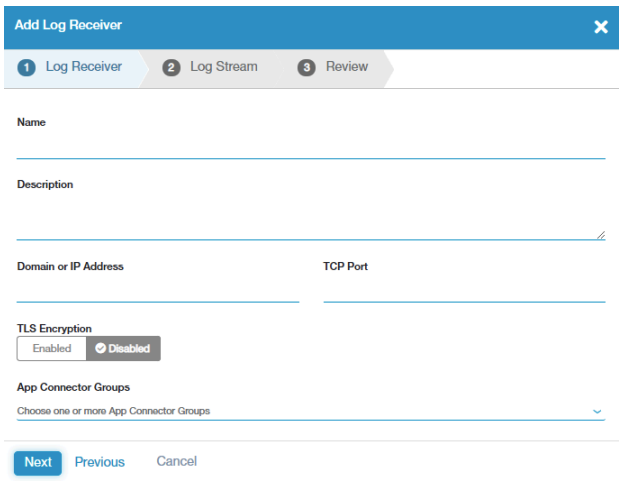
Log Receiver
On the Log Receiver tab:
- Name: Enter a name for the log receiver. The name cannot contain special characters, with the exception of periods (.), hyphens (-), and underscores ( _ ).
- Description: Optional.
- Domain or IP Address: Enter IP address for the log receiver.
- TCP Port: Enter the TCP port number provided by SolCyber.
- TLS Encryption: Select DISABLED.
- App Connector Groups: Choose the App Connector groups that can forward logs to the receiver, and click Done.
Click Next.
.png)
Log Stream
- On the Log Stream tab, select a Log Type from the drop-down menu. The following log types should be set for delivery:
- User Activity: Information on end user requests to applications.
- User Status: Information related to an end user’s availability and connection to ZPA.
- Browser Access: HTTP log information related to Browser Access.
- Audit Logs: Session information for all admins accessing the ZPA Admin Portal.
- Select JSON in the Log Template drop-down menu.
- On the Review tab, review your log receiver configuration, and click Save
.png)