
Office 365 (Azure AD, Exchange, SharePoint, General)
Log in to the Azure portal as an admin and search for App registrations in the top search bar.

Click + New registration.

Enter the following details on the Register an application page:
- Name: SolCyber-O365
- Supported account types: Accounts in this organizational directory only (Single Tenant)
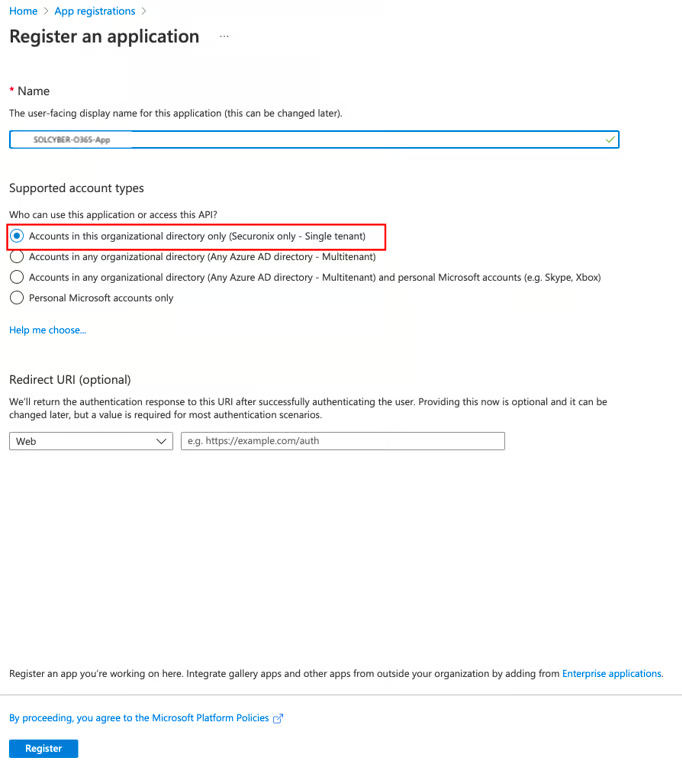
Click Register. You will be redirected to the new application overview screen.
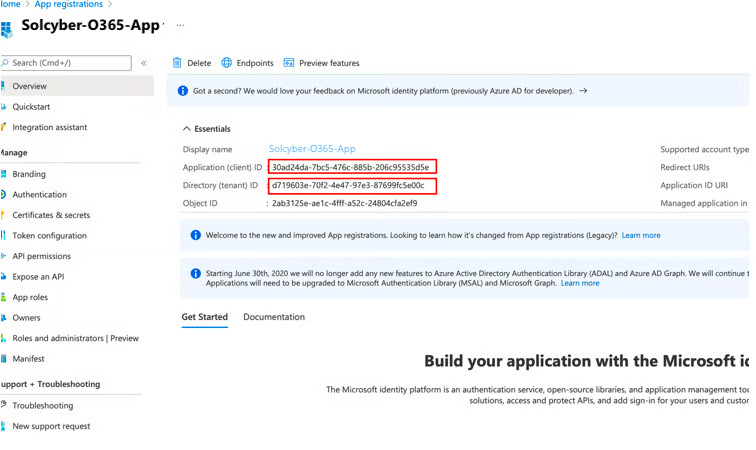
Copy the Application (client) ID and Directory (tenant) ID. You will need to provide these to SolCyber.
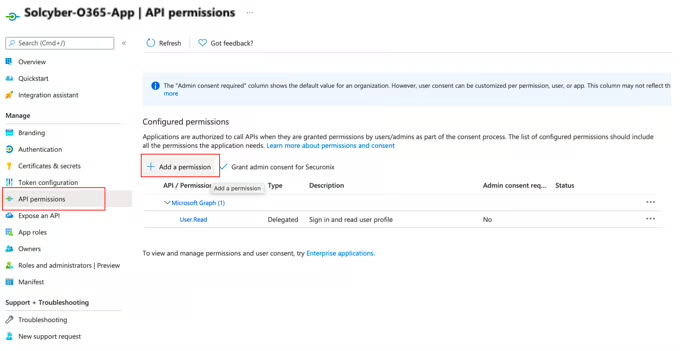
Open API permissions, then click Add a permission.
Select Office 365 Management APIs.

Select the permissions shown in the screenshot below.

Click Grant admin consent for [User].
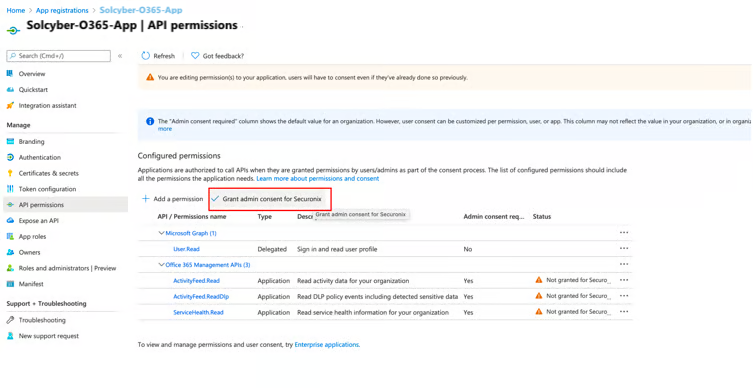
You will see a confirmation message once the consent is applied.

Go to Certificates and Secrets, then click New client secret.
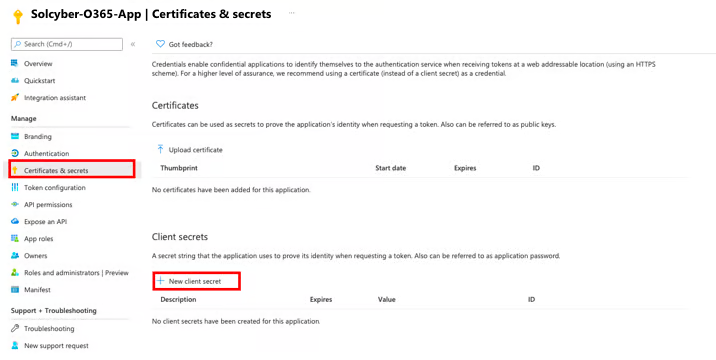
Enter the following:
- Description: SolCyberKey
- Expires: 2 Years
.png)
Copy the Value of the client secret. This value cannot be retrieved after you leave the page.
.png)
You will need to provide SolCyber with the secret value, along with the App ID and Tenant ID from earlier.