
Single Sign On Configuration
Azure Active Directory (SAML)#
In the Azure portal, navigate to Enterprise applications, and then add a New application.
Click Create your own application, and then enter a name for the app.
Select the default value of Integrate any other application you don’t find in the gallery (Non-Gallery) and then click Create.
On the app Overview page that displays, in the Set up single sign on step, click Get started.
Choose SAML as the SSO method.
Under Basic SAML Configuration, click Edit, and enter the following values for the respective fields:
- Identifier (Entity ID): urn:app.ermetic.com
- Reply URL (Assertion Consumer Service URL): https://us.app.ermetic.com/api/authentication/saml2/customer/acs
Click Save.
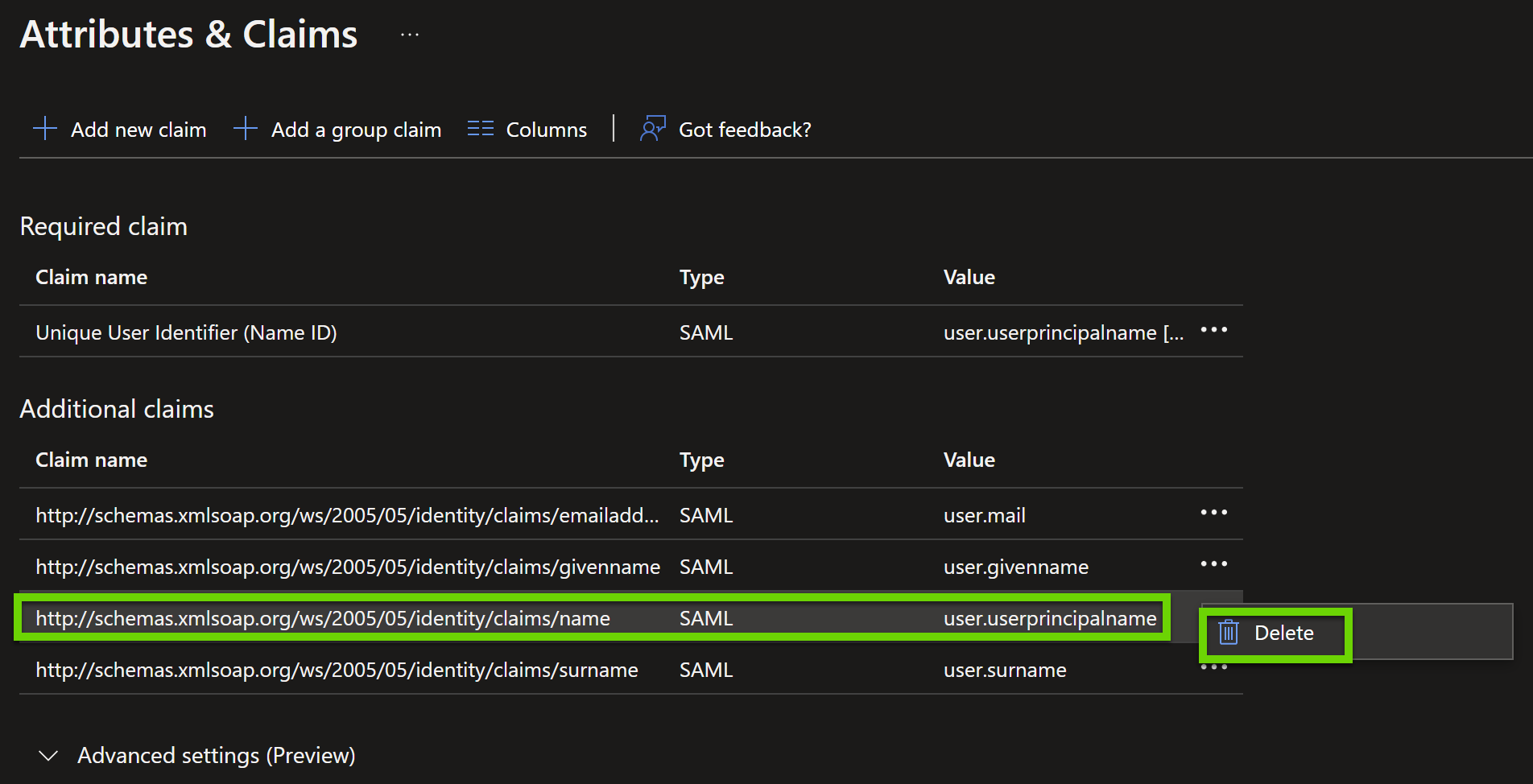
Under Attributes & Claims, click Edit, and then, under Additional claims, delete the user.userprincipalname claim.
Under SAML Certificates, click to download the Federation Metadata XML. Send the XML file it to SolCyber to complete the setup.
Okta#
Enable login to the Ermetic Console via Okta by leveraging the SAML 2.0 identity specification.
- In the Okta Admin Console, navigate to Applications > Applications.
- Click Browse App Catalog.
- Enter Ermetic Console in the Search field, click the application tile, and then click Add.
- Select the Sign On tab in the Ermetic app, and then click Edit.
- Scroll to Advanced Sign-on Settings and enter a Region, where the value you enter depends on the value in the URL you use to log in to the Ermetic Console (https://us.app.ermetic.com/customer/).
Note: If Region is left blank, the US region is used as the default.
- In the SAML Setup section, click View SAML setup instructions.
- Under Configuration Steps, copy the URL value listed in step 2 and send it to SolCyber to complete the setup
Add Support for Okta Groups in Ermetic #
To add support for Okta groups:
- In the Okta Admin Console, navigate to the Ermetic Console application that you added.
- Navigate to the Sign On tab, click Edit next to Settings, and then under SAML 2.0, expand the Attributes section.
- Under Group Attribute Statements, in the Name field, type groups, and then enter a relevant filter to define which groups will be sent to Ermetic. For example, if you want to send all groups, you can select Matches regex with a value of
.*.
Important: The Name field is case sensitive. The
groupsvalue must be entered exactly as is.
- Click Save.
- After you finish, provide the name of the group to SolCyber.