
Active Directory Assessment Setup
SolCyber will perform a bi-annual assessment of your Active Directory environment(s) and provide a report and analysis of critical findings. This documentation covers preparing your environment for the assessment of on-premise Active Directory. If you have an Entra ID (Azure Active Directory) environment that you would like assessed, please see the Azure Active Directory Assessment Setup.
The assessment runs from a SentinelOne agent that is already installed in your environment. There is no separate agent to install. You choose a suitable endpoint, SolCyber designates it as the AD Connector in the SentinelOne console, and the assessment is run from there.
How the Assessment Works#
- SolCyber designates one domain-joined endpoint running the SentinelOne agent as the AD Connector.
- Using a read-only service account that you create, the AD Connector queries your Domain Controllers over LDAP, SMB and WinRM. It queries the Primary Domain Controller first and falls back to the next available Domain Controller only if the PDC is unreachable.
- Results are sent to SentinelOne through the agent’s existing console connection. No data is written to your Active Directory.
- Queries are sent in small batches. There is no measurable impact on the Domain Controllers.
What SolCyber Needs From You#
- The hostname of the endpoint you have chosen as the AD Connector (see AD Connector Requirements).
- The name of your root domain, and confirmation of whether sub-domains should be included.
- A read-only service account with the permissions described under AD Read-Only Service Account, with the credentials delivered via onetimesecret.com or an encrypted email.
- Confirmation that WinRM is reachable on all Domain Controllers from the AD Connector (see WinRM on the Domain Controllers).
AD Connector Requirements#
Choose one domain-joined endpoint to act as the AD Connector. It must already have the SentinelOne agent installed and reporting to the console. It is not advised to designate a Domain Controller as the AD Connector. The system requirements for the AD Connector are listed below:
- An AD-joined endpoint on Windows 10 64-bit or higher or Windows Server 2012 R2 or higher.
- SentinelOne agent version S-25.3.3 or later, installed and online. SolCyber will confirm the agent version for you if you are unsure.
- CPU: 4 core
- RAM: 16 GB
- Hard disk free space: 1 GB
- Internet bandwidth: 5 Mbps
- The Active Directory domain functional level must be Windows Server 2012 R2 or later.
The device you select to serve as the AD Connector should be stable and always up. We do not recommend using a device that is regularly powered down or not continually connected to the network. If the AD Connector goes offline, the assessment stops until it is back online or another endpoint is designated.
A Domain Controller protected by SentinelOne Singularity Identity cannot be designated as the AD Connector, and Singularity Identity cannot be enabled on an endpoint that is acting as the AD Connector.
Network Requirements#
Ensure your network and security settings allow these protocols between the AD Connector and the Domain Controller(s):
- DNS (53) - Make sure the AD Connector endpoint can resolve the forest and domain names.
- Kerberos - UDP (88) and TCP (88)
- LDAP (389/636)
- SMB (445)
- WinRM (5985/5986) - HTTPS (5986) is recommended.
The AD Connector reaches SentinelOne through the agent’s standard console connection on tcp 443. If the agent is already online, no additional outbound allowances are required.
At the time of assessment, there can be up to 11% CPU usage on the AD Connector endpoint. This maximum CPU usage lasts only a few seconds. Normal CPU usage is around 4%.
If you use the SentinelOne agent to manage the Windows firewall on your endpoints, create firewall rules that allow the traffic above between the AD Connector and the Domain Controllers. If the AD Connector or the Domain Controllers are virtual machines in Azure, AWS or similar, allow the same traffic in the relevant network security group.
AD Read-Only Service Account#
Please create a read-only domain service account to perform the assessment. You will need to provide SolCyber with the account credentials via onetimesecret.com or an encrypted email.
- The account must have access to WinRM on all Domain Controllers (see WinRM on the Domain Controllers).
- It is recommend to use an unmanaged service account. This prevents settings such as password expiry that may apply to an user account.
- To assess a forest, provide an account in the root domain. This account should have read access to all the objects and containers in the root domain and sub-domains. This includes parent and child OUs, Users, Computers, and GPO.
- To detect the Dangerous control paths expose MicrosoftDNS servers vulnerability, the account must have read permissions for the MicrosoftDNS container in the AD.
- The account must have explicit read permissions on the objects below. Without these, the assessment reports the finding Insufficient permissions for AD exposure assessment instead of assessing them:
- adminSDHolder
- KRBTGT accounts
- Administrator accounts
- Domain Admins group
- Schema Admins group
- Enterprise Admins group
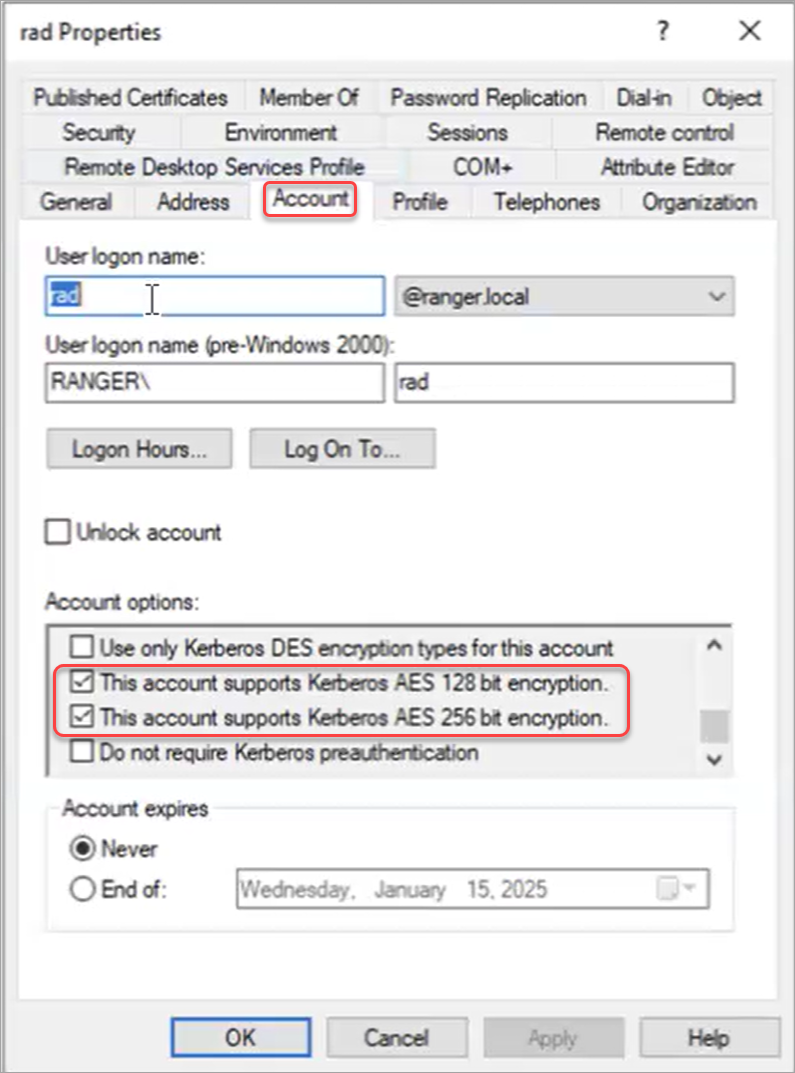
Enable Kerberos AES Encryption on the Service Account#
- Open Active Directory Users and Computers on a Domain Controller.
- Right-click the service account, then click Properties > Account.
- On the Account tab, select The account supports Kerberos AES 128-bit encryption and The account supports Kerberos AES 256-bit encryption.
- Click OK.
WinRM on the Domain Controllers#
The AD Connector uses WinRM, authenticated with Kerberos, to query each Domain Controller. WinRM is enabled by default on Windows Server, but the service account must be allowed to use it and the port must be open. Complete these steps on every Domain Controller.
Allow the Service Account to Use WinRM#
- Open Active Directory Users and Computers.
- In the Builtin container, open the Remote Management Users group and add the service account as a member. Click OK.
- On the Domain Controller, open Windows Command Prompt in administrator mode and run
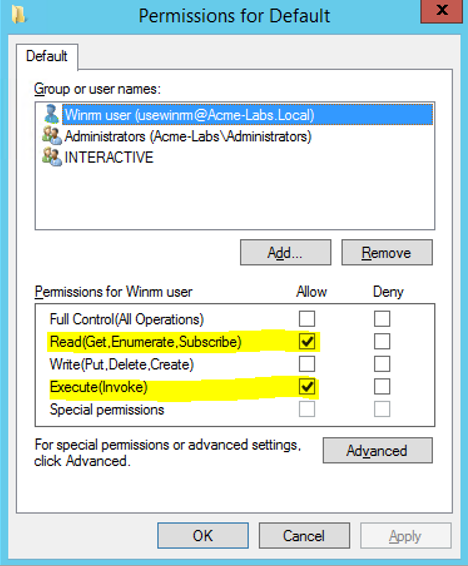
winrm configSDDL default - In the Permissions for Default window, add the service account under Group or user names.
- Under Permissions, select Allow for Read (Get, Enumerate, Subscribe) and Execute (Invoke).
- Click Apply > OK.
Option A - WinRM over HTTPS (Recommended)#
The Domain Controller needs a certificate whose Subject Name is the Domain Controller’s hostname. The certificate used for LDAPS can be reused.
- Open Windows Command Prompt in administrator mode and run
winrm quickconfig -transport:https - If quickconfig does not create the listener, create it manually. Replace the placeholders with the Domain Controller FQDN and the certificate thumbprint:
winrm create winrm/config/Listener?Address=*+Transport=HTTPS @{Hostname="<DC FQDN>";CertificateThumbprint="<THUMBPRINT>"}
- Verify the listener and the bound certificate by running
winrm enumerate winrm/config/listener - Create an inbound Windows Defender Firewall rule: Inbound Rules > New Rule > Port > TCP > Specific Local Ports
5986, Allow the connection, all profiles, name it WinRM HTTPS.
Option B - WinRM over HTTP#
Use HTTP only if the Domain Controllers do not have a suitable certificate. Authentication is still protected by Kerberos.
- Open Windows Command Prompt in administrator mode and run:
winrm set winrm/config/Client @{AllowUnencrypted="true"}winrm set winrm/config/service @{AllowUnencrypted="true"}
- Create an inbound Windows Defender Firewall rule allowing TCP port
5985.
Verify Readiness#
Before telling SolCyber you are ready, confirm the following from the AD Connector endpoint, signed in as any domain user:
- The forest and domain names resolve. Run
nslookup <your-domain.com> - WinRM on each Domain Controller accepts the service account. Replace the placeholders and enter the service account password when prompted:
Test-WSMan -ComputerName <DC FQDN> -UseSSL -Authentication Kerberos -Credential <DOMAIN\serviceaccount>- Omit
-UseSSLif you configured WinRM over HTTP.
- The SentinelOne agent on the endpoint shows as Online in your SentinelOne console, or ask SolCyber to confirm.
When these checks pass, send SolCyber the AD Connector hostname, the domain details and the service account credentials. SolCyber will designate the endpoint as the AD Connector in the SentinelOne console and confirm when the first assessment has completed.